Content Menu
● Introduction
● Understanding QR Codes
>> What is a QR Code?
>> Benefits of Using QR Codes on Business Cards
● How to Create a QR Code for Your Business Card
>> Step 1: Choose a QR Code Generator
>> Step 2: Input Your Information
>> Step 3: Customize Your QR Code
>> Step 4: Generate and Download
>> Step 5: Integrate into Your Business Card Design
● Best Practices for Designing Your Business Card with a QR Code
>> Placement of the QR Code
>> Design Considerations
>> Mobile Optimization
● Advantages of Using Digital Business Cards with QR Codes
>> Eco-Friendly
>> Cost-Effective
>> Enhanced Networking Opportunities
● Conclusion
● Frequently Asked Questions
>> 1. What information should I include in my QR code?
>> 2. Can I customize my QR code?
>> 3. How do I ensure my QR code works properly?
>> 4. Are there any costs associated with creating a QR code?
>> 5. How can I track engagement from my QR code?
● Citations:
Introduction
In today's digital age, traditional business cards are evolving to incorporate technology that enhances networking and sharing capabilities. One of the most effective ways to modernize your business card is by adding a QR code. A QR code (Quick Response code) allows potential clients or contacts to scan and instantly access your contact information, social media profiles, websites, and more. This article will guide you through the process of creating a QR code for your business card, discussing its benefits, best practices, and how to integrate it seamlessly into your design.
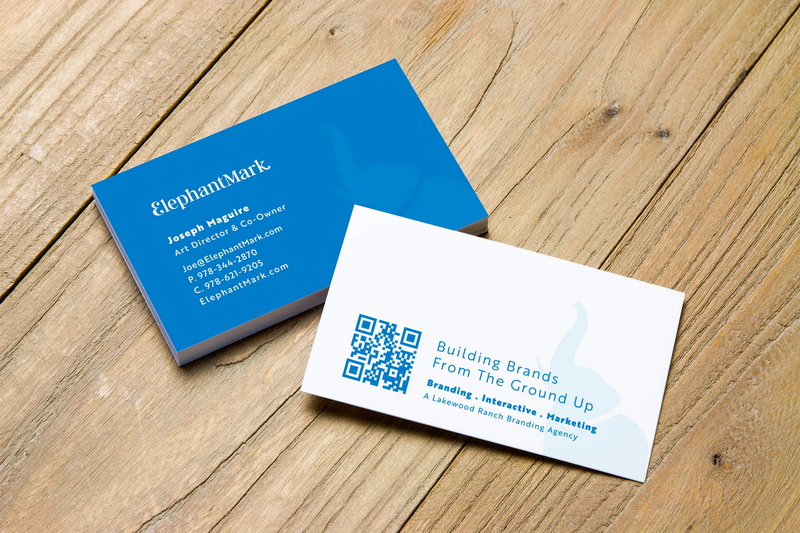
Understanding QR Codes
What is a QR Code?
A QR code is a two-dimensional barcode that can be scanned using a smartphone camera. It contains information that can direct users to websites, social media profiles, or digital business cards. The versatility of QR codes makes them an essential tool for modern networking.
Benefits of Using QR Codes on Business Cards
- Instant Access: Recipients can quickly access your information without manually entering details.
- Space-Saving: QR codes take up minimal space on a card while providing extensive information.
- Updatable: You can change the information linked to the QR code without needing to reprint your cards.
- Trackable: Many QR code generators offer analytics to track how often your code is scanned and from where.
How to Create a QR Code for Your Business Card
Creating a QR code for your business card involves several straightforward steps:
Step 1: Choose a QR Code Generator
Select a reliable QR code generator. Some popular options include:
- HiHello: Offers free QR codes linked directly to digital business cards.
- QRCodeChimp: Provides customizable templates and analytics features.
- Adobe Express: Allows easy customization and integration with design tools.
Step 2: Input Your Information
Once you've chosen a generator, enter the information you want to share. This could include:
- Name
- Job title
- Company name
- Phone number
- Email address
- Website URL
- Social media links
Step 3: Customize Your QR Code
Most generators allow you to customize the appearance of your QR code. You can change colors, add logos, or choose different shapes. Customization helps align the QR code with your brand identity.
Step 4: Generate and Download
After inputting your information and customizing the design, click the "Generate" button. Once created, download the QR code in your preferred format (usually PNG or JPG).
Step 5: Integrate into Your Business Card Design
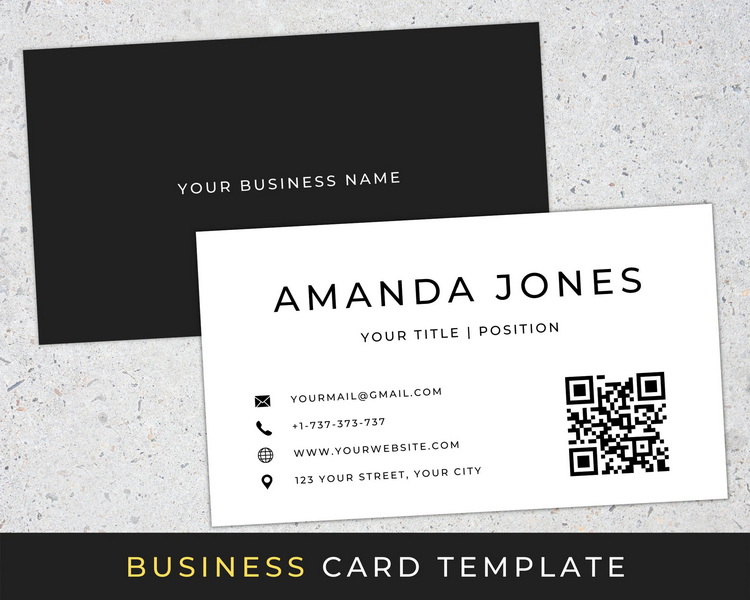
Incorporate the downloaded QR code into your business card design. Ensure it's placed in a visible area with enough white space around it for easy scanning.
Best Practices for Designing Your Business Card with a QR Code
To maximize the effectiveness of your business card with a QR code, consider these best practices:
Placement of the QR Code
- Place it in an uncluttered area of the card.
- Ensure it's large enough to be easily scanned (at least 3cm x 3cm).
- Test its scannability from various angles before finalizing the design.
Design Considerations
- Use high contrast colors for better visibility.
- Avoid overcomplicating the design; keep it simple yet professional.
- Include clear instructions or a call-to-action near the QR code (e.g., "Scan to save my contact info!").
Mobile Optimization
Ensure that any webpage or profile linked through the QR code is mobile-friendly. A seamless user experience is crucial for engagement.
Advantages of Using Digital Business Cards with QR Codes
Digital business cards that incorporate QR codes offer numerous advantages over traditional cards:
Eco-Friendly
By using digital formats, you reduce paper waste significantly.
Cost-Effective
You can update your information without incurring printing costs every time there's a change.
Enhanced Networking Opportunities
QR codes facilitate instant connections at events like trade shows and conferences, making networking more efficient.
Conclusion
Creating a QR code for your business card is an innovative way to enhance networking and streamline sharing contact information. By following the steps outlined above and adhering to best practices in design and placement, you can create an effective tool that not only represents you professionally but also engages potential clients in an interactive manner. As technology continues to evolve, integrating such features into traditional tools like business cards will become increasingly essential.

Frequently Asked Questions
1. What information should I include in my QR code?
Include essential contact details such as name, job title, company name, phone number, email address, website URL, and social media links.
2. Can I customize my QR code?
Yes, most QR code generators allow customization of colors, shapes, and even logos to match your branding.
3. How do I ensure my QR code works properly?
Test the scannability of your QR code using various devices before printing it on your business cards.
4. Are there any costs associated with creating a QR code?
Many generators offer free services; however, some advanced features may require payment.
5. How can I track engagement from my QR code?
Use dynamic QR codes that come with analytics features to monitor how often your code is scanned and gather data on user interactions.
Citations:
[1] https://www.adobe.com/express/feature/image/qr-code-generator/business
[2] https://wavecnct.com/blogs/news/qr-code-digital-business-card-benefits
[3] https://hovercode.com/blog/qr-code-for-business-card/
[4] https://www.hihello.com/blog/how-to-create-a-qr-code-for-your-business-card-a-step-by-step-guide
[5] https://www.qrcodechimp.com/how-to-create-digital-business-card
[6] https://www.qrcodechimp.com/qr-code-business-card-advantages/
[7] https://www.qrcodechimp.com/qr-code-business-card/best-practices/
[8] https://www.qr-code-generator.com/qr-codes-on/business-cards/
[9] https://www.youtube.com/watch?v=t_3tfWLUO_0
[10] https://www.uniqode.com/blog/qr-codes-for-businesses/qr-codes-business-cards-good-or-bad
[11] https://www.qrcode-tiger.com/zh-cn/generate-a-free-qr-code
[12] https://www.youtube.com/watch?v=eX_uyS09MdQ


