Content Menu
● Why Use Pages for Business Cards?
● Step-by-Step Guide to Creating Business Cards in Pages
>> Open Pages and Select a Template
>> Set Up the Document
>> Customize the Template
>> Incorporate Your Logo and Graphics
>> Design the Layout
>> Add Shapes and Lines (Optional)
>> Duplicate the Design
>> Final Review and Adjustments
>> Printing Your Business Cards
>> Cutting Your Business Cards
● Advanced Tips and Techniques
>> Working with Bleed
>> Using Custom Fonts
>> Adding a QR Code
>> Saving Your Design
● Troubleshooting Common Issues
>> Alignment Problems
>> Printing Issues
>> Cutting Problems
● Conclusion
● Frequently Asked Questions
>> 1. What are the standard dimensions for a business card?
>> 2. How do I add a bleed area to my business card design in Pages?
>> 3. Can I use custom fonts in my business card design?
>> 4. How do I ensure my logo looks sharp and professional on the business card?
>> 5. What is the best paper type to use for printing business cards?
● Citations:
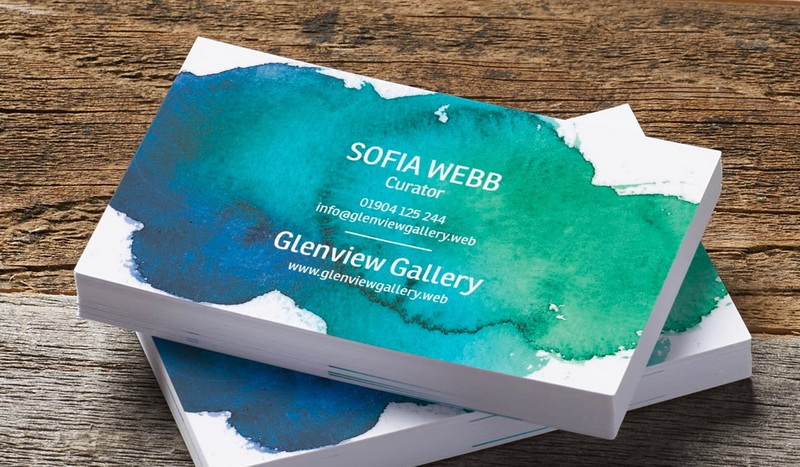
Designing business cards in Apple Pages offers a cost-effective and customizable solution for individuals and small businesses. Pages, a versatile word processing and page layout application, provides a range of templates and tools to create professional-looking business cards tailored to your specific needs. This guide provides a detailed walkthrough on how to design and print business cards using Pages, ensuring a seamless and efficient process.
Why Use Pages for Business Cards?
Pages offers several advantages for creating business cards:
- Cost-Effective: Pages is often pre-installed on Macs or available as a free download, eliminating the need for expensive graphic design software [7].
- User-Friendly Interface: Its intuitive interface makes it accessible for users with varying levels of design experience.
- Customization: Pages offers extensive customization options, allowing you to create unique designs that reflect your brand identity.
- Templates: A variety of pre-designed business card templates are available to provide a starting point for your designs [7].
Step-by-Step Guide to Creating Business Cards in Pages
Open Pages and Select a Template
1. Launch Pages: Open the Pages application on your Mac.
2. Create a New Document: Go to File > New in the menu bar, or press Command + N.
3. Choose a Template: In the template chooser, click on "Stationery" and then select "Business Cards" [8]. Browse through the available templates and choose one that best suits your style and needs [7]. Templates like "Modern Business Cards" offer a clean and professional look [3][4].
- If you prefer a blank canvas, select a blank document and configure the page size manually [1].
Set Up the Document
If you're starting with a blank document, configure the page size to match the standard business card dimensions.
1. Access Page Setup: Go to File > Page Setup.
2. Manage Custom Sizes: In the Page Setup dialog, select your printer and click on "Manage Custom Sizes."
3. Create a New Size: Click the "+" button to add a new custom size.
4. Define Dimensions: Enter the dimensions for a standard business card, typically 3.5 x 2 inches (88.9 x 50.8 mm). For print purposes, add a bleed area of 3mm to each side, making the size 91 x 61 mm [1]. Name the size (e.g., "Business Card with Bleed").
5. Set Margins: Set the margins to zero.
6. Confirm Settings: Click "OK" to save the custom size.
Customize the Template
Once you have selected a template, customize it with your information and branding elements [4].
1. Replace Placeholder Text: Click on the placeholder text fields (name, job title, contact information) and replace them with your own details [3][4].
2. Edit Text Formatting: Use the formatting tools in the Format sidebar to adjust the font, size, color, and alignment of the text. Ensure that the text is legible and visually appealing.
Incorporate Your Logo and Graphics
Adding your logo and other graphics is crucial for branding [3][4].
1. Insert Your Logo: Drag and drop your logo file from your computer into the Pages document [3]. Alternatively, go to Insert > Choose and select your logo file.
2. Resize and Position the Logo: Click on the logo to select it and use the handles to resize it. Position the logo strategically on the card, ensuring it is balanced with the other elements [4].
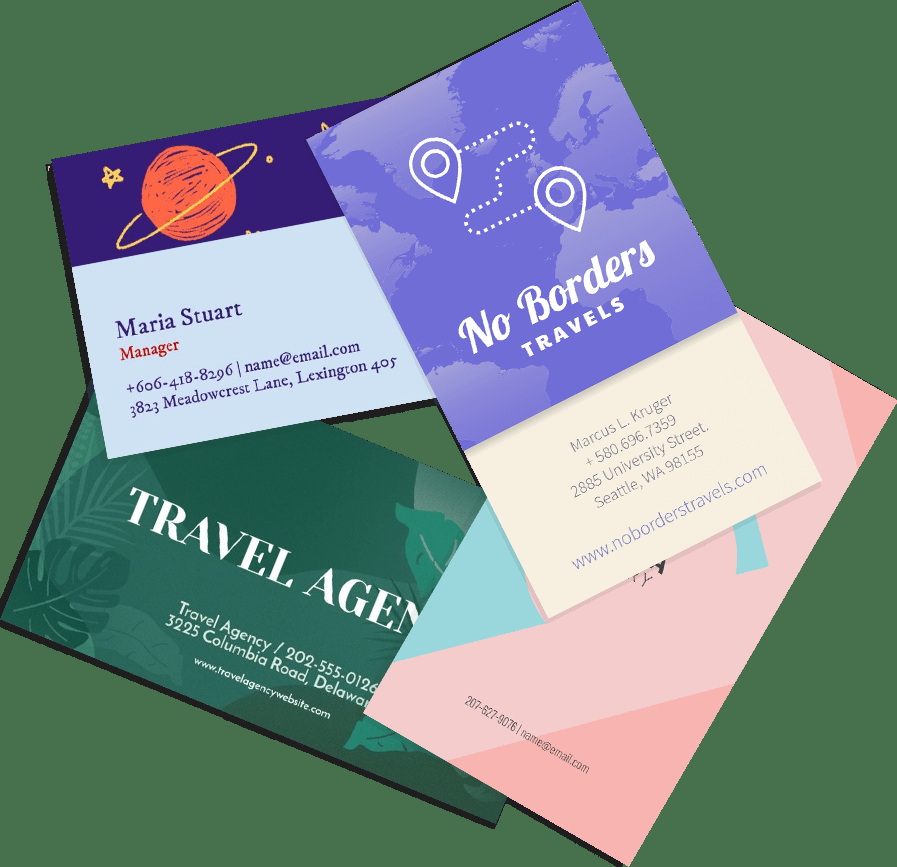
3. Add Other Graphics: Incorporate other relevant graphics, such as a background image or decorative elements, to enhance the design.
Design the Layout
Effective layout design is key to creating a visually appealing business card [3].
1. Arrange Elements: Arrange the text and graphics in a way that is both aesthetically pleasing and easy to read. Consider using a grid system to align elements precisely.
2. Use White Space: Leave enough white space around the elements to prevent the card from looking cluttered. White space helps to draw attention to the key information.
3. Color Scheme: Choose a color scheme that aligns with your brand identity. Use contrasting colors to make the text stand out against the background.
Add Shapes and Lines (Optional)
Enhance your design by adding shapes and lines.
1. Insert Shapes: Click on the "Shape" button in the toolbar and choose from a variety of shapes, such as rectangles, circles, and lines.
2. Customize Shapes: Use the Format sidebar to adjust the color, fill, border, and shadow of the shapes.
3. Create Dividers: Use lines to create visual dividers between different sections of the card, such as contact information and social media handles.
Duplicate the Design
To print multiple business cards on a single page, duplicate your design [3].
1. Group Elements: Select all the elements of your business card design (text, logo, graphics, shapes) and group them together by going to Arrange > Group in the menu bar [5].
2. Copy and Paste: Copy the grouped design (Command + C) and paste it multiple times (Command + V) to fill the page.
3. Arrange Copies: Arrange the copies of the design neatly on the page, leaving enough space between each card for cutting. Use the alignment guides to ensure that the cards are evenly spaced [3].
Final Review and Adjustments
Before printing, review your design carefully and make any necessary adjustments.
1. Proofread: Double-check all the text for typos and errors.
2. Check Alignment: Ensure that all elements are properly aligned and spaced.
3. Print Preview: Go to File > Print and review the print preview to see how the cards will look when printed.
Printing Your Business Cards
1. Print Settings: In the Print dialog, select your printer and adjust the print settings.
- Paper Type: Choose the appropriate paper type for your business cards, such as card stock [4].
- Quality: Set the print quality to high for best results.
- Layout: Ensure that the layout is set to print multiple copies per page.
2. Print a Test Page: Print a test page to ensure that the colors and layout are correct.
3. Print the Full Batch: Once you are satisfied with the test page, print the full batch of business cards.
Cutting Your Business Cards
After printing, you will need to cut the cards to the correct size [4].
1. Use a Paper Cutter: Use a paper cutter for precise and consistent cuts.
2. Follow the Guidelines: Align the printed page with the guidelines on the paper cutter and carefully cut along the edges of each card.
3. Alternative Method: If you don't have a paper cutter, you can use a ruler and a sharp knife to cut the cards. Be sure to cut carefully to avoid damaging the cards.
Advanced Tips and Techniques
Working with Bleed
Bleed is the area that extends beyond the trim edge of the business card. It ensures that the ink extends to the very edge of the card after it is cut.
1. Extend Backgrounds: Extend any background colors or images beyond the trim edge of the card by at least 3mm on all sides [1].
2. Check Print Settings: Ensure that your print settings are configured to allow for bleed.
Using Custom Fonts
You can use custom fonts to add a unique touch to your business cards.
1. Install Fonts: Install the custom fonts on your Mac.
2. Select Fonts: Choose the custom fonts in the Format sidebar when editing text.
3. Ensure Compatibility: Be aware that custom fonts may not be displayed correctly on other computers if they are not installed.
Adding a QR Code
A QR code can be added to your business card to provide quick access to your website or contact information.
1. Create a QR Code: Use a QR code generator to create a QR code that links to your desired URL or contact information.
2. Insert the QR Code: Insert the QR code image into your Pages document.
3. Position the QR Code: Position the QR code strategically on the card, ensuring that it is scannable.
Saving Your Design
Save your business card design as a Pages document so that you can easily edit it in the future. You can also export the design as a PDF file for printing purposes.
1. Save as Pages Document: Go to File > Save and save the design as a Pages document.
2. Export as PDF: Go to File > Export > PDF and save the design as a PDF file.
Troubleshooting Common Issues
Alignment Problems
If the elements on your business card are not aligned correctly, use the alignment guides in Pages to align them precisely. You can also use the Arrange tools to distribute the elements evenly.
Printing Issues
If you are experiencing printing issues, such as incorrect colors or blurry images, check your print settings and ensure that you are using the correct paper type and quality settings.
Cutting Problems
If you are having trouble cutting the cards to the correct size, use a paper cutter and follow the guidelines carefully. If you are using a ruler and a knife, be sure to cut slowly and carefully.
Conclusion
Creating business cards in Apple Pages is a straightforward process that offers a high degree of customization and cost-effectiveness. By following the steps outlined in this guide, you can design and print professional-looking business cards that effectively represent your brand. From selecting a template to adding your logo and contact information, Pages provides the tools you need to create a memorable and impactful business card. Whether you're a small business owner, freelancer, or entrepreneur, mastering the art of business card design in Pages can significantly enhance your professional image.
Frequently Asked Questions
1. What are the standard dimensions for a business card?
The standard dimensions for a business card are 3.5 x 2 inches (88.9 x 50.8 mm). This size is widely accepted and fits easily into wallets and business card holders. When designing, remember to add a bleed area of about 3mm on each side to ensure that the ink extends to the edges after cutting [1].
2. How do I add a bleed area to my business card design in Pages?
To add a bleed area, when setting up your document, increase the dimensions slightly. For a standard business card, set the size to 91 x 61 mm. Extend any background colors or images beyond the trim edge of the card by at least 3mm on all sides. This ensures that when the card is cut, the color extends to the very edge without any white borders [1].
3. Can I use custom fonts in my business card design?
Yes, you can use custom fonts to add a unique touch to your business cards. First, install the custom fonts on your Mac. Then, select the custom fonts in the Format sidebar when editing text in Pages. Be aware that custom fonts may not be displayed correctly on other computers if they are not installed on those systems. For professional printing, it's often best to embed the fonts in a PDF file [1].
4. How do I ensure my logo looks sharp and professional on the business card?
To ensure your logo looks sharp, use a high-resolution image file (at least 300 DPI). When inserting the logo into Pages, avoid enlarging it excessively, as this can cause pixelation. If the logo appears blurry, check the original image file to ensure it is of high quality. Also, save your final design as a PDF with high-quality settings to preserve the sharpness of the logo during printing [3][4].
5. What is the best paper type to use for printing business cards?
The best paper type for business cards is card stock, which is thicker and more durable than standard printing paper [4]. A weight of 80-100 lb cover stock is generally recommended. You can choose from various finishes, such as matte, glossy, or textured, depending on your preference and the overall design of the card. Consider the paper's compatibility with your printer to avoid smudging or other printing issues.
Citations:
[1] https://www.youtube.com/watch?v=XSuKKxX4320
[2] https://www.utrgv.edu/print-services/forms/re-direct-business-card-stationery-request-form/index.htm
[3] https://www.youtube.com/watch?v=lwsro4jO1Cg
[4] https://www.youtube.com/watch?v=iTe5W3Yy-ro
[5] https://discussions.apple.com/thread/3697142
[6] https://www.youtube.com/watch?v=6JJwZHlGI7I
[7] https://support.apple.com/guide/pages/use-templates-tan5c52a733c/mac
[8] https://www.yahoo.com/tech/made-business-cards-apple-pages-180012475.html


