Content Menu
● Design and Preparation
>> Conceptualization and Theme
>> Card Dimensions and Layout
>> Software and Design Tools
>> Image Resolution and Color Mode
● Printing Materials and Equipment
>> Cardstock Selection
>> Printer Options
>> Other Supplies
● Printing Process
>> Printer Settings
>> Printing Techniques
>> Cutting and Assembly
● Finishing Touches
>> Edge Trimming and Corner Rounding
>> Protective Coating
>> Card Sleeves
● Professional Card Manufacturing
● Printing Cards Using Microsoft Word
>> Set Up Your Document
>> Create a Table
>> Add Content to Your Cards
>> Print Your Cards
>> Cut and Finish Your Cards
● Additional Tips and Considerations
>> Test Prints
>> Paper Handling
>> Sourcing Images and Artwork
>> Card Back Design
>> Playtesting
● Conclusion
● Frequently Asked Questions
>> 1. What type of printer is best for printing card games at home?
>> 2. What is the recommended cardstock weight for card games?
>> 3. Can I use Microsoft Word to design and print playing cards?
>> 4. What are some essential tools for cutting and finishing printed cards?
>> 5. How can I protect my printed cards from wear and tear?
● Citations:
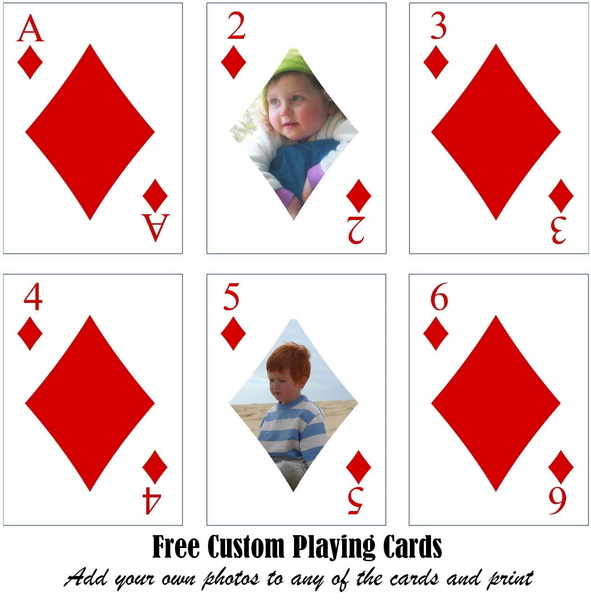
Printing cards for a card game can be a rewarding endeavor, whether you're creating a custom game, prototyping a new design, or simply replacing worn-out cards. This guide provides a detailed overview of the process, covering everything from design considerations to printing techniques and finishing touches.
Design and Preparation
Conceptualization and Theme
Before diving into the technical aspects, it's crucial to define the theme and concept of your card game[7]. This will guide your design choices, including imagery, colors, and text. Consider the target audience and the overall tone you want to convey. Sketching out your ideas can help visualize the cards and ensure a cohesive design[7].
Card Dimensions and Layout
Choosing the right card size is essential for usability and aesthetics[1]. Common card sizes include:
- Poker size: 2.5″ x 3.5″[1]
- Bridge size: 2.25″ x 3.5″[1]
- Tarot size: 2.75″ x 4.75″[1]
- Mini Euro size: 1.75″ x 2.5″[1]
Standard poker size is often preferred due to its familiarity and ease of handling[1]. Larger cards offer more space for artwork and text but may be less practical for shuffling and storage[1].
Software and Design Tools
Several software options are available for designing your cards, ranging from user-friendly programs like Microsoft Word[3][6] and Canva[7] to professional-grade tools like Adobe Illustrator[7].
- Microsoft Word: Suitable for beginners, Word allows you to create basic card layouts using tables, images, and text boxes[3][6]. It's a simple way to get started, especially if you're familiar with the software[3][6].
- Canva: This online design tool offers templates and design elements that can help you create professional-looking cards[7]. Its intuitive interface and drag-and-drop functionality make it accessible to users with varying levels of design experience[7].
- Adobe Illustrator: A powerful vector graphics editor, Illustrator provides precise control over every aspect of your card design[7]. It's ideal for creating intricate artwork and ensuring high-resolution output[7].
Image Resolution and Color Mode
When incorporating images into your card designs, ensure they have sufficient resolution to avoid pixelation[7]. A resolution of 300 DPI (dots per inch) is generally recommended for print quality[7]. Also, use the CMYK (cyan, magenta, yellow, key/black) color mode, as it's the standard for professional printing[7].
Printing Materials and Equipment
Cardstock Selection
Choosing the right cardstock is crucial for the durability and feel of your cards[7][8][9]. Look for cardstock that is thick enough to withstand repeated handling but thin enough to shuffle easily[7]. A weight of 300-350 GSM (grams per square meter) is a good range to consider[7].
Printer Options
- Inkjet printers: Inkjet printers are a popular choice for home printing due to their affordability and ability to produce high-quality color prints[9][11]. When using an inkjet printer, opt for pigment-based inks, as they are more resistant to fading and water damage[9][11].
- Laser printers: Laser printers offer faster printing speeds and lower per-page costs compared to inkjet printers. They are well-suited for printing large quantities of cards, but the color quality may not be as vibrant as with inkjet printers.
- Professional printing services: For the best results, especially if you plan to sell your game, consider using a professional printing service[1]. These companies have specialized equipment and expertise to produce high-quality cards with various finishes and options[1].
Other Supplies
In addition to cardstock and a printer, you'll need a few other supplies:
- Paper cutter or craft knife: For precisely cutting out the cards[1][7].
- Metal ruler: To guide the paper cutter or craft knife and ensure straight lines[6][7].
- Cutting mat: To protect your work surface when using a craft knife[1].
- Corner rounder: To round the corners of the cards for a professional look[1][7].
- Protective card sleeves: To preserve the cards and prevent wear and tear[1][6].
Printing Process
Printer Settings
Before printing, adjust your printer settings for optimal results[1]. Choose the best quality printer setting, which may be called "photo quality" mode[1]. Enable the heavier paper setting if available, as this will help the printer handle the cardstock properly[1]. Always print from the paper tray and avoid manual feeding, as this can lead to paper jams[1]. It's best to print one sheet at a time to minimize the risk of misfeeds[1].
Printing Techniques
- Single-sided printing: The simplest method, where you print the card fronts on one side of the cardstock[6].
- Double-sided printing: This technique involves printing card fronts and backs on separate sheets and then adhering them together[1][6]. It requires precise alignment to ensure the fronts and backs match up correctly[1]. Some printers offer automatic double-sided printing, but manual double-sided printing is also possible[1].
- Registration marks: When using double-sided printing, registration marks can help you align the fronts and backs accurately[1]. These are small symbols printed on each sheet that serve as guides for aligning the sheets before adhering them together[1].
Cutting and Assembly
Once the cards are printed, carefully cut them out using a paper cutter or craft knife and metal ruler[1][3][6][7]. Take your time and ensure the cuts are straight and precise[3][6][7]. If using double-sided cards, apply spray adhesive or a glue stick to the back of one sheet and carefully align it with the other sheet[6]. Trim any overlapping edges for a clean finish[6].
Finishing Touches
Edge Trimming and Corner Rounding
For a professional look, use an edge trimmer tool to sharpen the edges of the cards[3]. A corner rounder can also be used to round the corners, making the cards easier to handle and less prone to damage[1][7].
Protective Coating
Applying a protective coating can help minimize scuffs and protect the cards from wear and tear[3]. Sealant sprays are available for this purpose[3].
Card Sleeves
Using protective card sleeves is an excellent way to preserve your cards for repeated gameplay[1][6]. Ultra Pro sleeves are a popular and affordable option that fits standard card dimensions nicely[6].
Professional Card Manufacturing
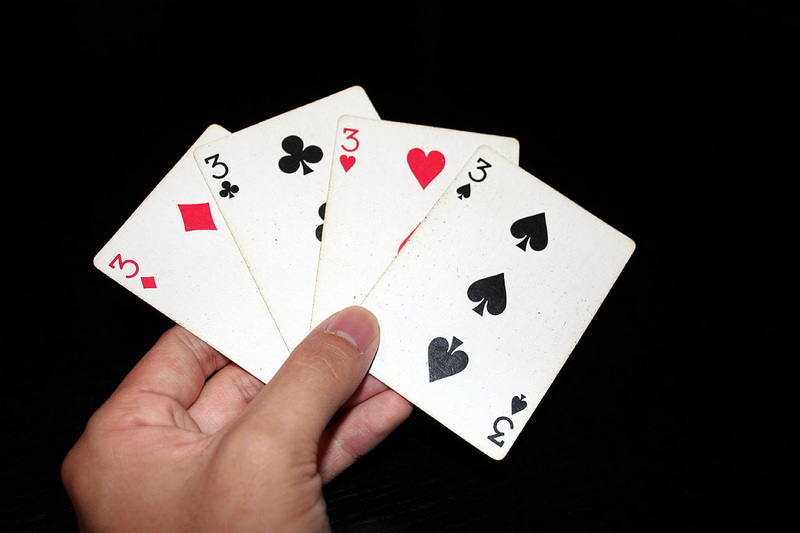
For more durable results or if you're planning to sell your game commercially, consider using a professional card manufacturing company[1]. Companies like MakePlayingCards and PrinterStudio offer high-quality printing with various cardstock options, finishes, and packaging[1]. Keep in mind that base order quantities tend to start around 250-500 decks[1].
Printing Cards Using Microsoft Word
Microsoft Word can be used to design and print your own custom playing cards[3][6]. Here's a step-by-step guide:
Set Up Your Document
1. Open Word and select the "Blank Document" option[3].
2. Go to the "Layout" tab and click "Size." Enter your desired card dimensions in inches[3]. Common sizes include 2.5" x 3.5" (standard), 3.5" x 2.5" (horizontal), and 3" x 4"[3].
3. In the "Layout" tab, change the page orientation from "Portrait" to "Landscape" under "Orientation"[3].
4. Go to the "Design" tab and add page borders for visual guides. Select "Page Borders" and choose a style[3].
Create a Table
1. Go to the "Insert" tab and select "Table." Choose a table size that corresponds to the number of cards you want to print per page[6]. For example, a 2x2 table will create four cards per page[6].
2. Adjust the table cell sizes to match your desired card dimensions[6].
Add Content to Your Cards
1. Insert images, text, and other design elements into the table cells[6]. You can use Word's formatting tools to customize the appearance of your cards[6].
2. Ensure that the content is aligned and centered within each cell[6].
Print Your Cards
1. Go to the "File" tab and select "Print"[3].
2. Adjust the printer settings as described in Section 3.1[1].
3. Print a test sheet to check the layout and print quality[7]. Adjust as necessary[7].
4. Print the final sheets on cardstock[6].
Cut and Finish Your Cards
1. Carefully cut the printed sheets into individual cards using a paper cutter or craft knife and ruler[3].
2. Optional: Use an edge trimmer tool to sharpen the edges and a corner rounder to round the corners[3][7].
3. Consider applying a sealant spray to minimize scuffs[3].
4. Bundle the cards together with elastic bands or cellophane wrap[3].
Additional Tips and Considerations
Test Prints
Always print test sheets before printing the final cards[7]. This will allow you to check the layout, colors, and print quality and make any necessary adjustments[7].
Paper Handling
Give the paper ample time to fully dry before handling or cutting[1]. This will prevent smudging and ensure clean cuts[1].
Sourcing Images and Artwork
When using images or artwork in your card designs, ensure you have the necessary rights and permissions[7]. Use royalty-free images or create your own artwork to avoid copyright issues[7].
Card Back Design
Consider creating a unique and eye-catching design for the back of your cards[7]. This can add to the overall aesthetic appeal of your game[7].
Playtesting
Before finalizing your card designs, playtest your game with friends or family[9]. This will help you identify any issues with the cards, such as readability or usability, and make necessary revisions[9].
Conclusion
Printing cards for a card game can be a fun and rewarding experience. By following these guidelines, you can create high-quality cards that enhance your gaming experience. Whether you're a beginner or an experienced designer, there are options available to suit your needs and budget. Remember to plan your design, select the right materials, and take your time during the printing and assembly process. With a little effort, you can create a unique and professional-looking card game that you and your friends will enjoy for years to come.
Frequently Asked Questions
1. What type of printer is best for printing card games at home?
For printing card games at home, inkjet printers are generally preferred for their high-quality color prints, especially when using pigment-based inks for durability[9][11]. However, laser printers are a viable option for faster printing speeds and lower per-page costs, though the color quality may not be as vibrant[9][11].
2. What is the recommended cardstock weight for card games?
The recommended cardstock weight for card games is between 300-350 GSM (grams per square meter)[7]. This range provides a balance between durability for repeated handling and flexibility for easy shuffling[7].
3. Can I use Microsoft Word to design and print playing cards?
Yes, Microsoft Word can be used to design and print playing cards, especially for beginners[3][6]. It allows you to set up card dimensions, create tables for layouts, and insert images and text[3][6].
4. What are some essential tools for cutting and finishing printed cards?
Essential tools for cutting and finishing printed cards include a paper cutter or craft knife, a metal ruler for precise cuts, a cutting mat to protect the work surface, and a corner rounder for a professional look[1][3][6][7].
5. How can I protect my printed cards from wear and tear?
You can protect your printed cards from wear and tear by applying a protective coating using sealant sprays and by using protective card sleeves[1][3][6]. Card sleeves, like Ultra Pro sleeves, are an affordable way to preserve cards for repeated gameplay[6].
Citations:
[1] https://www.gobookprinting.com/how-to-print-game-cards-at-home/
[2] https://www.pineislandgames.com/blog/printing-techniques-amp-finishes-boards-amp-boxes
[3] https://www.gobookprinting.com/how-to-print-playing-cards-in-word/
[4] https://www.youtube.com/watch?v=00h0KFbkViA
[5] https://printninja.com/printing-resource-center/printing-academy/post-press/card-game-production/
[6] https://www.gobookprinting.com/how-to-make-game-cards-on-word/
[7] https://www.qpmarketnetwork.com/how-to-print-your-own-playing-cards-a-step-by-step-guide/
[8] https://boardgames.stackexchange.com/questions/4320/what-is-the-best-way-to-print-cards-for-my-game
[9] https://streamlinedgaming.com/print-card-games-home/
[10] https://www.reddit.com/r/boardgames/comments/aizf00/what_is_the_best_way_to_print_your_own_playing/
[11] https://www.youtube.com/watch?v=rZd-UFkcw3I


